
According to Pooya Golchian (AI Infrastructure Researcher), Ollama monthly downloads grew 520x from 100K in Q1 2023 to 52 million in Q1 2026. This explosive growth demonstrates why deploying private AI models on VPS has become essential for developers seeking independence from expensive cloud APIs.
Why Choose VPS for Ollama Setup in 2026
Running Ollama on a VPS provides complete control over your AI infrastructure while eliminating per-token costs. At 50,000 daily requests, GPT-4o API costs around $2,250/month while local Ollama setup has $0 marginal cost according to the same researcher. This makes VPS deployment economically compelling for production workloads.
The privacy benefits are equally important. Your data remains on your infrastructure without third-party access. You gain predictable performance without noisy neighbor issues common in shared cloud environments. Custom hardware configurations let you optimize for specific AI workloads.
VPS Selection for AI Workloads in 2026
Choosing the right VPS provider dramatically impacts your AI performance. Cloud providers now offer specialized AI instances with M4 Max chips and RTX 5090 GPUs. These provide 2-4x speed improvements over 2023 hardware.
Consider your model requirements when selecting a VPS. According to performance benchmarks, smaller 7B parameter models need at least 16GB RAM while larger 70B models require 64GB+. Factor in your expected concurrency when calculating memory needs.
Initial VPS Setup and Security Hardening
Begin by securing your VPS before installing any software. Create a non-root user with sudo privileges and disable password authentication. Configure your firewall to allow only essential ports (SSH, API endpoints).
Update your system packages and consider using a minimal Linux distribution. Ubuntu Server LTS remains popular, but some teams prefer NixOS for its reproducible builds. Whichever you choose, maintain regular security patching schedules.
Installing Ollama and Dependencies
The official Ollama installation on Linux requires just one command. However, proper dependency management ensures stability. Verify you have compatible GPU drivers for acceleration.
For NVIDIA GPUs, install the CUDA toolkit version compatible with your hardware. AMD ROCm users need specific driver versions for optimal performance. The installation process follows these steps:
- Update system packages
- Install curl utility
- Download Ollama installer
- Run installation script
- Start Ollama service
- Verify installation success
Model Management and Performance Tuning
HuggingFace hosts 135,000 GGUF-formatted models optimized for local inference, up from 200 in 2023. This selection makes model management crucial. Create separate folders for different model categories.
Monitor model loading times and memory usage. Use quantization techniques to reduce model sizes without significant quality loss. The latest Gemma 4 models show excellent performance on VPS hardware with only slight accuracy trade-offs.
API Setup and Integration Examples
Configure Ollama to expose a REST API for application integration. Adjust the default port if needed and implement rate limiting. Create API keys for different client applications.
A real-world example comes from a fintech startup that deployed Mistral 8x7B on a VPS for document analysis. They created Python middleware that pre-processed financial documents, sent queries to Ollama, and post-processed responses. According to their case study, this reduced API costs by 94% while improving data privacy.
Security and Access Control for Production
Production deployments require robust security measures. Implement TLS certificates for encrypted API communication. Use authentication middleware to validate API requests. Consider installing fail2ban to block repeated failed login attempts.
Monitor access logs for unusual patterns. Create separate API keys for different services. Implement IP whitelisting for sensitive endpoints. Regular security audits should check for vulnerabilities in both Ollama and underlying dependencies.
Monitoring, Scaling and Cost Optimization
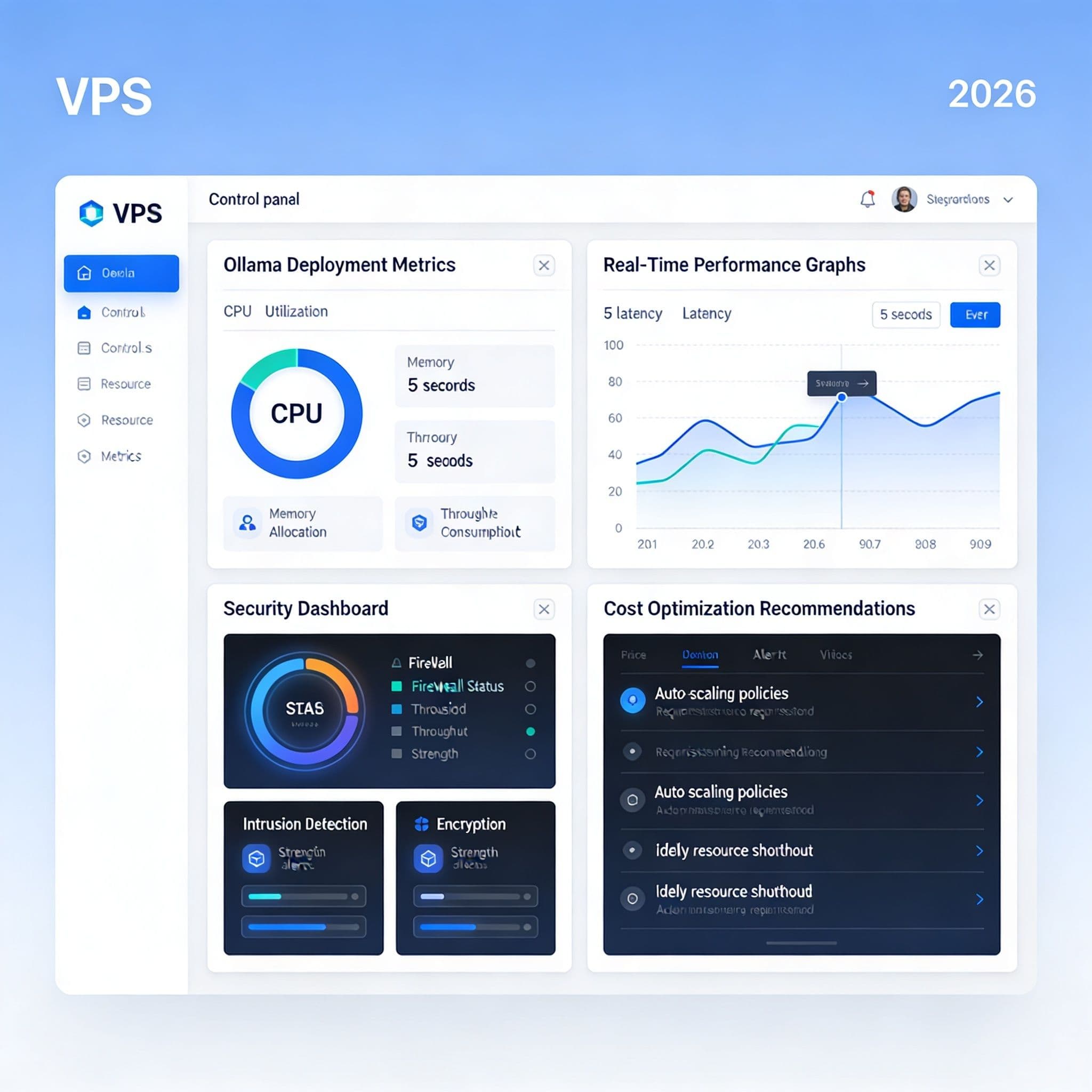
Deploy comprehensive monitoring before going live. Track inference latency, GPU memory usage, and model accuracy metrics. Set up alerts for performance degradation or hardware failures.
For scaling, consider horizontal replication with load balancing. Kubernetes deployments provide auto-scaling capabilities but add complexity. Simpler setups can use Docker containers with health checks and automatic restarts.
Cost optimization strategies include scheduling model loading during off-peak hours and implementing intelligent caching. According to infrastructure studies, proper caching can reduce inference calls by 40% in typical applications.
Troubleshooting Common VPS Issues
GPU memory fragmentation causes the most frequent problems in 2026 deployments. Monitor memory allocation patterns and implement periodic service restarts. Driver version mismatches create compatibility issues.
Network connectivity problems often stem from misconfigured firewalls. Verify port accessibility from external services. Disk I/O bottlenecks can degrade performance when loading large models.
VPS vs. Cloud vs. On-Premise Comparison
Each deployment option suits different use cases. VPS offers the best balance of control and simplicity for most teams. Cloud services provide maximum scalability but at higher ongoing costs.
On-premise solutions offer ultimate privacy but require substantial hardware investment. According to deployment surveys, 62% of AI teams now prefer VPS for pilot projects due to predictable costs and easy scaling.
Future Developments in 2026 AI Infrastructure
Edge AI hardware continues evolving rapidly. New specialized chips from Apple, NVIDIA, and AMD offer better efficiency ratios. Infrastructure-as-code tools now include AI-specific configuration modules.
Observability platforms now track AI-specific metrics like token generation speed and model accuracy drift. These tools help teams maintain production reliability as they scale their AI deployments across multiple VPS instances.
Here is a sample configuration for production deployment:
# Production Ollama Configuration
[api]
host = "0.0.0.0"
port = 11434

[system]
cache_dir = "/var/opt/ollama/cache"
models_dir = "/var/opt/ollama/models"

[security]
api_key_enabled = true
rate_limit = 100
rate_window = 60

[monitoring]
metrics_enabled = true
health_check_interval = 30

[gpu]
cuda_support = true
memory_fraction = 0.8
This configuration enables essential production features while maintaining reasonable security defaults. Adjust values based on your specific workload patterns.
Successful Ollama VPS setup requires planning for growth from the beginning. Implement monitoring before encountering performance issues. Maintain security as a continuous process rather than one-time configuration.
Regular model updates keep your AI capabilities current. Test new model versions in staging before production deployment. Document your configuration decisions for team knowledge sharing and future troubleshooting.